
Layout · article.md
Flutter Layout Constraints: The 3-Minute Cheat Sheet
I built five Flutter apps before I actually understood layout constraints. Up to that point, my process was simple: keep wrapping things in Center, Expanded, or SizedBox until the red screen of death went away.
If that sounds like your workflow, let's fix it right now. Once you grasp Flutter's layout rule, debugging takes 10 seconds instead of hours.
The Golden Rule
Every single widget layout in Flutter is governed by a single golden rule:
CONSTRAINTS go DOWN. SIZES go UP. Parent sets POSITION.
Here is what this means in plain English:
- Parent tells Child (Constraints go Down): “Here are your limits. You must be between X and Y wide, and A and B tall.”
- Child tells Parent (Sizes go Up): “Got it. Based on my content, I want to be exactly W wide and H tall.” (This must be within the parent's limits).
- Parent places Child (Parent sets Position): “Perfect. I'll put you at these coordinates on the screen.”
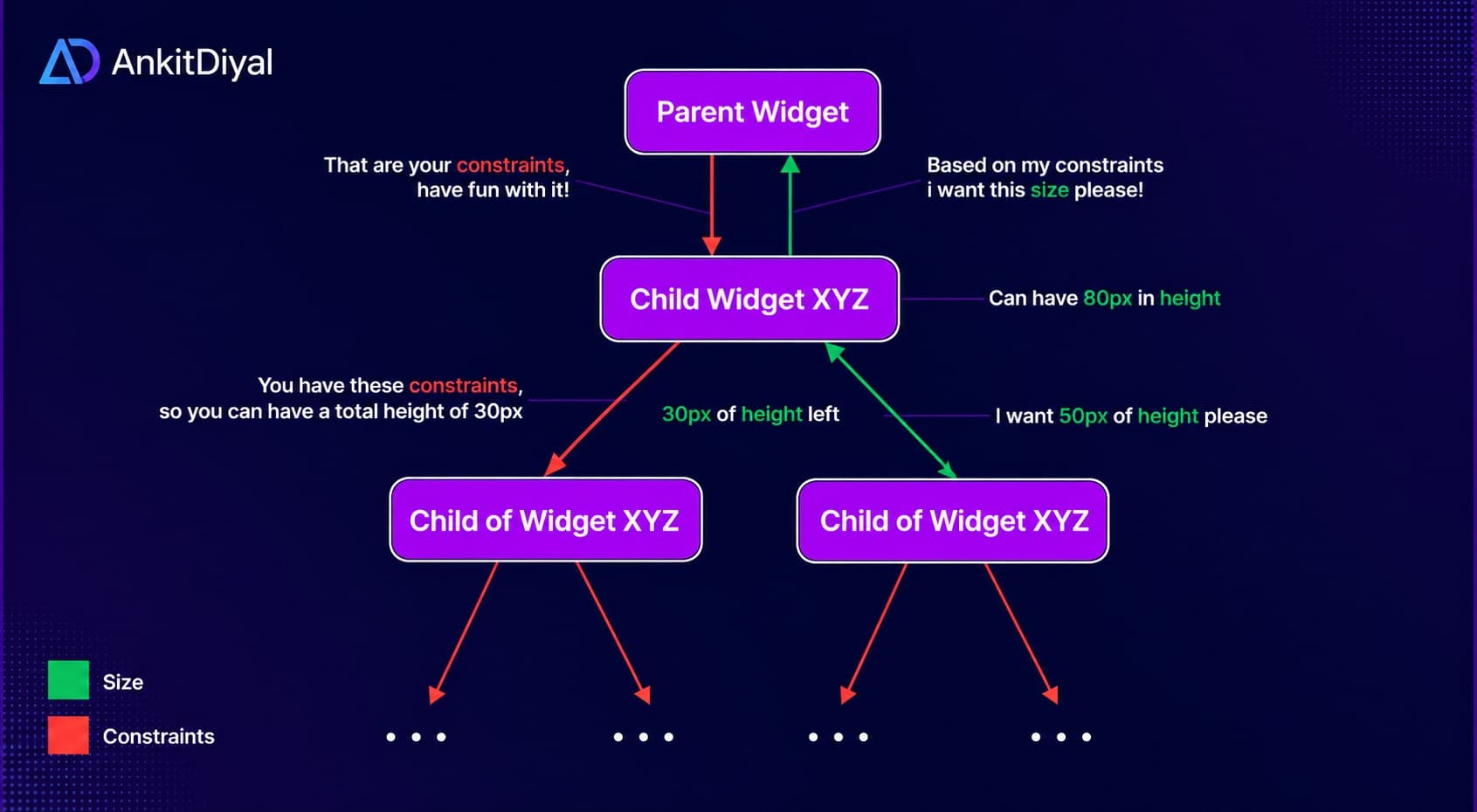
The 3 Types of Constraints
There are only three constraint configurations you will ever encounter:
- Tight: The parent tells the child, “You must be exactly this size.” (e.g., a child of
SizedBox.expand()). - Loose: The parent sets a maximum width/height but lets the child decide its size up to that limit. (e.g., a child of
Center()). - Unbounded: The parent tells the child, “You can be as big as you want, even infinite.” (e.g., inside scrollables like
ListViewor the main axis of aRow/Column). This is where most crashes happen.
2 Common Errors & Quick Fixes
1. The Yellow-and-Black Stripe Overflow
The Scenario: You put a long text widget inside a Row.
Row(
  children: [
    Text("This is a really long text that will overflow the screen width..."),
  ],
)
Why it breaks: By default, a Row gives its children loose constraints with infinite width. The Text says “great!” and expands to fit its entire single line, running off the screen boundary.
The One-Line Fix: Wrap the text widget in an Expanded.
Row(
  children: [
    Expanded(
      child: Text("This is a really long text that will overflow the screen width..."),
    ),
  ],
)
Why it works: Expanded tells the Row to compute the remaining space and pass a tight maximum width constraint to the child, forcing the text to wrap.
2. The Blank Screen / Unbounded Height Exception
The Scenario: You nest a ListView directly inside a Column.
Column(
  children: [
    ListView(
      children: [Text("Item 1"), Text("Item 2")],
    ),
  ],
)
Why it breaks: A Column tells its children they can have infinite height. But a ListView tries to consume as much vertical space as possible. A child trying to be infinite inside an infinite parent crashes with an unbounded height error, leaving you with a blank screen.
The One-Line Fix: Wrap the ListView in an Expanded.
Column(
  children: [
    Expanded(
      child: ListView(
        children: [Text("Item 1"), Text("Item 2")],
      ),
    ),
  ],
)
Why it works: Expanded caps the infinite height. It tells the ListView: “No, you can only be as tall as the remaining vertical screen space.”
The 5-Second Debugging Guide
Next time a widget doesn't look right, ask yourself two questions:
- Is my widget ignoring its own size? Your parent is likely passing a tight constraint. Wrap your widget in a
CenterorAlignto loosen it. - Did my app crash with an “unbounded” error? Your parent is passing infinite space. Wrap the child in
ExpandedorFlexibleto cap it.
Layout constraints aren't trying to make your life difficult; they are just following rules. Once you learn to think in parent-child limits, you'll never guess layouts again.
P.S. The official documentation is actually excellent: flutter.dev/ui/layout/constraints. Bookmark it for reference, but now you have the cheat sheet version.
Struggling with a tricky Flutter layout? Reach out to me – let's get it solved!